# Web Client
Sign in through your browser and arrange your personal Emby home screen.
# Web Client Sign-In
Sign in to Blackbeard’s Vault from a computer, phone, or tablet using a current web browser.
## Before you start
- Have the **username and password supplied after signing up on Discord**. Use your username, not your email.
- Connect your device to the internet.
## Sign in
1. Open [https://blackbeardsvault.com](https://blackbeardsvault.com). **Keep the s in https://** when typing the address.
2. If a profile list appears, choose **Manual Login**. Enter your Discord-issued **Username** and **Password**. **Your username is case-sensitive:** match the capital and lowercase letters exactly.
3. Use **Remember me** only on your own device, then select **Sign In**.
**Expected result:** your Emby home screen shows the libraries available to your account.
[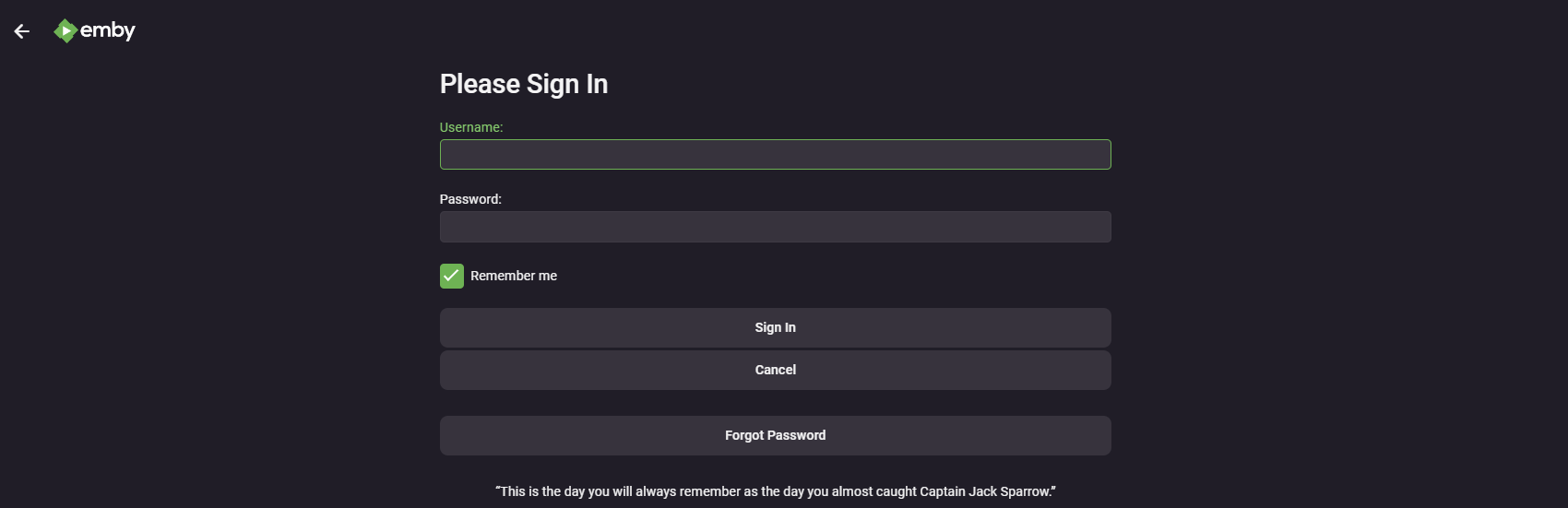](https://guides.blackbeardsvault.com/uploads/images/gallery/2024-01/image.png)
Sign-in screen from the existing guide; appearance may vary by version.
## Next steps
Bookmark the site with **Ctrl+D** on Windows or **Command+D** on Mac. Follow [Home Screen Customization](https://guides.blackbeardsvault.com/books/emby-app-setup-guides/page/home-screen-customization) to arrange your home page.
Want to use your own password? Follow [Change your password (Emby)](https://guides.blackbeardsvault.com/books/emby-app-setup-guides/page/change-your-password-emby). If you have forgotten it or cannot sign in, contact Cruv on Discord.
## Troubleshooting
**Already bought an app unlock in the past?** Emby honors those previous purchases. Sign in to the same Apple, Google, or Amazon store account that originally bought the unlock, using the matching app/platform. Use **Restore Purchase** if the app offers it. If the purchase is not recognized, contact Cruv. New app unlocks are no longer the route for access. **Never purchase Emby Premiere.**
**Need an unlock, or seeing “Premiere Device Limit Exceeded”?** Contact **@Captain Cruv** in **\#emby-support** for a **Jellyfin account**. **Do not buy an app unlock or Emby Premiere.** Once Cruv has provided your account, follow [Getting Started with Jellyfin](https://guides.blackbeardsvault.com/books/jellyfin-guides/page/getting-started-with-jellyfin).
- **Cannot reach the server:** copy `https://blackbeardsvault.com` exactly and try [the web client](https://guides.blackbeardsvault.com/books/emby-app-setup-guides/page/web-client-sign-in).
- **Sign-in rejected:** check your username and password for extra spaces. Use the server login, not Emby Connect. Ask for account help if it still fails.
- **Playback or licensing error:** update the app, try another title, and report the exact message to support.
Contact **@Captain Cruv** in **\#emby-support** on Discord. Include your device, app version, exact error, and when it happened. Never post your password.
## References
[Emby web client](https://support.emby.media/support/articles/Web-Client.html) · [Server accounts and Emby Connect](https://support.emby.media/support/articles/Emby-Connect.html)
Technical guidance reviewed September 2026. Store availability and interface labels can change.
# Home Screen Customization
Arrange your Emby web home screen so the items you use most are easy to find. These are personal display preferences.
## Before you start
Sign in at [https://blackbeardsvault.com](https://blackbeardsvault.com). This guide uses the web client; app versions can have different section controls.
## Customize the home screen
1. Open your **profile menu** at the top right, then choose **App Settings**. Some versions show a gear icon.
2. Choose **Home Screen**.
3. Arrange the home sections in this order where those controls are available: **Continue Watching**, **Latest Media**, then **My Media**. Set unused sections to **None** if your version uses numbered section menus.
4. Enable **Hide fully played content from latest media** if you prefer to see only unwatched additions. Use **Library Order** to put your most-used libraries first.
5. Save if the screen provides a save button, then return to Home and check the result.
**Expected result:** in-progress titles appear first, followed by new additions and your library shortcuts. Pick a different order if it suits you better.
[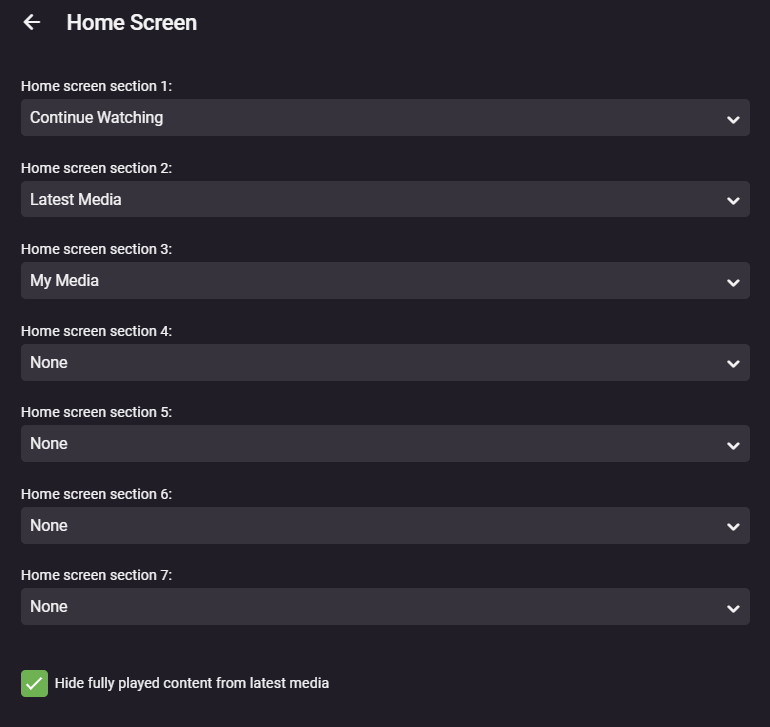](https://guides.blackbeardsvault.com/uploads/images/gallery/2024-01/OoVimage.png)
Example from the existing guide. Newer Emby versions may use a different section editor; the suggested order is the same.
## Troubleshooting
If a label or option is missing, check the equivalent Home Screen controls in your current app. Available sections depend on the libraries your account can access. Refresh Home after changing settings; some preferences are specific to the client.
Contact **@Captain Cruv** in **\#emby-support** on Discord. Include your device, app version, exact error, and when it happened. Never post your password.
## References
[Emby Home Screen and Library Order](https://emby.media/community/topic/129635-how-to-rearrange-libraries/) · [Emby web client](https://support.emby.media/support/articles/Web-Client.html)
Technical guidance reviewed September 2026. Store availability and interface labels can change.