Emby App Setup Guides
Download links, sign in instructions, and getting started guides can all be found here.
- 🚀 Getting Started with Emby
- Where to Download
- Web Client
- iOS Apps
- Roku App
- Amazon Fire TV
- Android
- Smart TV Apps
- Xbox and Playstation Apps
- Change your password (Emby)
🚀 Getting Started with Emby
Set up Emby for streaming from Blackbeard’s Vault. Start with your account, then choose the guide for your device.
Before you start
- Have the Emby username and password supplied on Discord. Contact Cruv if you need an account or cannot find your details.
- Use your supplied server username, not your email address. Follow the direct server sign-in steps in your device’s guide.
- Install the player app for your device. You do not need to install Emby Server.
Your streaming server
Use the complete HTTPS address. Follow your device’s guide for the server fields and port: Roku’s setup differs from other Emby apps.
Choose your device
| Device | Setup guide |
|---|---|
| Web browser / computer | Web Client Sign-In |
| iPhone / iPad | iOS setup |
| Apple TV | iOS and Apple TV guide |
| Android phone / tablet | Android setup |
| Android TV / Google TV / NVIDIA Shield | Android and TV setup |
| Roku / Roku TV | Roku setup |
| Amazon Fire TV | Fire TV setup |
| LG webOS / Samsung Tizen | Smart TV setup |
| Xbox / PlayStation | Console support and playback options |
Need the app first? See Where to Download for official app links. Availability depends on the device model, software version, and region.
Expected result: your libraries appear after sign-in. Play a short part of a title to check picture and sound.
App unlock or Premiere message
Previously purchased an app unlock? Those purchases remain grandfathered. Sign into the same app-store account used for the original purchase, using the matching app and platform. Use Restore Purchase if offered. Your app-store account is separate from your Emby server login.
New app unlocks are no longer available. If you need an unlock, the purchase is not recognized, or playback remains blocked by a licensing or device-limit message, contact @Captain Cruv in #emby-support for a Jellyfin account.
Under no circumstances should you purchase Emby Premiere.
Once Cruv supplies your Jellyfin account, follow Getting Started with Jellyfin.
After signing in
Use Home Screen Customization to arrange your libraries and home sections.
Want to use your own password? Follow Change your password (Emby). If you have forgotten it or cannot sign in, contact Cruv on Discord.
Downloads for offline viewing
The old separate downloader is deprecated. Downloads are provided through Jellyfin upon request and approval by Cruv. Contact Cruv on Discord to request download access and wait for approval.
Need help?
Contact @Captain Cruv in #emby-support on Discord. Include your device model, app version, the exact error, and when it happened. Never post your password.
Where to Download
Choose the Emby app for your device, then open the matching Blackbeard’s Vault sign-in guide.
Before you start
Have your server account details from Discord ready. Install a player app; you do not need Emby Server.
Supported devices and setup guides
These are the device families covered by Blackbeard’s Vault support. Store availability depends on model, software version, and region.
| Device | Official app | Setup |
|---|---|---|
| Amazon Fire TV | Download / store link | Sign-in guide |
| Android phone / tablet | Download / store link | Sign-in guide |
| Android TV / Google TV | Download / store link | Sign-in guide |
| NVIDIA Shield | Download / store link | Sign-in guide |
| Apple TV | Download / store link | Sign-in guide |
| iPhone / iPad | Download / store link | Sign-in guide |
| LG webOS | Download / store link | Sign-in guide |
| Samsung Tizen | Download / store link | Sign-in guide |
| Roku / Roku TV | Download / store link | Sign-in guide |
Chromecast receives playback cast from a compatible phone or web client; it is different from a Chromecast with Google TV, which can run a TV app.
For a computer, use the web client. See console options before trying Xbox or PlayStation.
Blackbeard’s Vault membership page — for membership information. Contact Cruv in your Discord server for support.
Playback access
Already bought an app unlock in the past? Emby honors those previous purchases. Sign in to the same Apple, Google, or Amazon store account that originally bought the unlock, using the matching app/platform. Use Restore Purchase if the app offers it. If the purchase is not recognized, contact Cruv. New app unlocks are no longer the route for access. Never purchase Emby Premiere.
Need an unlock, or seeing “Premiere Device Limit Exceeded”? Contact @Captain Cruv in #emby-support for a Jellyfin account. Do not buy an app unlock or Emby Premiere. Once Cruv has provided your account, follow Getting Started with Jellyfin.
If you cannot find the app
Check the official download link and your device’s app store. Send Cruv the exact model and operating-system version if the app is unavailable.
Contact @Captain Cruv in #emby-support on Discord. Include your device, app version, exact error, and when it happened. Never post your password.
References
Emby apps and devices · Emby playback requirements
Technical guidance reviewed September 2026. Store availability and interface labels can change.
Web Client
Sign in through your browser and arrange your personal Emby home screen.
Web Client Sign-In
Sign in to Blackbeard’s Vault from a computer, phone, or tablet using a current web browser.
Before you start
- Have the username and password supplied after signing up on Discord. Use your username, not your email.
- Connect your device to the internet.
Sign in
- Open https://blackbeardsvault.com. Keep the s in https:// when typing the address.
- If a profile list appears, choose Manual Login. Enter your Discord-issued Username and Password. Your username is case-sensitive: match the capital and lowercase letters exactly.
- Use Remember me only on your own device, then select Sign In.
Expected result: your Emby home screen shows the libraries available to your account.
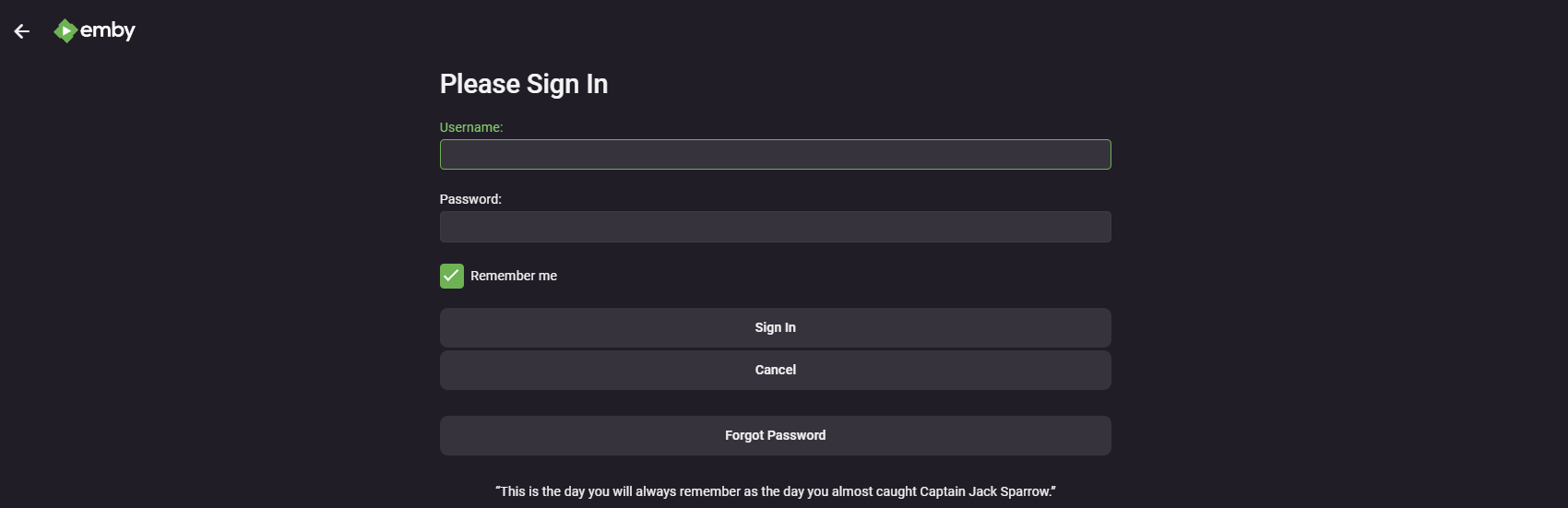
Sign-in screen from the existing guide; appearance may vary by version.
Next steps
Bookmark the site with Ctrl+D on Windows or Command+D on Mac. Follow Home Screen Customization to arrange your home page.
Want to use your own password? Follow Change your password (Emby). If you have forgotten it or cannot sign in, contact Cruv on Discord.
Troubleshooting
Already bought an app unlock in the past? Emby honors those previous purchases. Sign in to the same Apple, Google, or Amazon store account that originally bought the unlock, using the matching app/platform. Use Restore Purchase if the app offers it. If the purchase is not recognized, contact Cruv. New app unlocks are no longer the route for access. Never purchase Emby Premiere.
Need an unlock, or seeing “Premiere Device Limit Exceeded”? Contact @Captain Cruv in #emby-support for a Jellyfin account. Do not buy an app unlock or Emby Premiere. Once Cruv has provided your account, follow Getting Started with Jellyfin.
- Cannot reach the server: copy
https://blackbeardsvault.comexactly and try the web client. - Sign-in rejected: check your username and password for extra spaces. Use the server login, not Emby Connect. Ask for account help if it still fails.
- Playback or licensing error: update the app, try another title, and report the exact message to support.
Contact @Captain Cruv in #emby-support on Discord. Include your device, app version, exact error, and when it happened. Never post your password.
References
Emby web client · Server accounts and Emby Connect
Technical guidance reviewed September 2026. Store availability and interface labels can change.
Home Screen Customization
Arrange your Emby web home screen so the items you use most are easy to find. These are personal display preferences.
Before you start
Sign in at https://blackbeardsvault.com. This guide uses the web client; app versions can have different section controls.
Customize the home screen
- Open your profile menu at the top right, then choose App Settings. Some versions show a gear icon.
- Choose Home Screen.
- Arrange the home sections in this order where those controls are available: Continue Watching, Latest Media, then My Media. Set unused sections to None if your version uses numbered section menus.
- Enable Hide fully played content from latest media if you prefer to see only unwatched additions. Use Library Order to put your most-used libraries first.
- Save if the screen provides a save button, then return to Home and check the result.
Expected result: in-progress titles appear first, followed by new additions and your library shortcuts. Pick a different order if it suits you better.
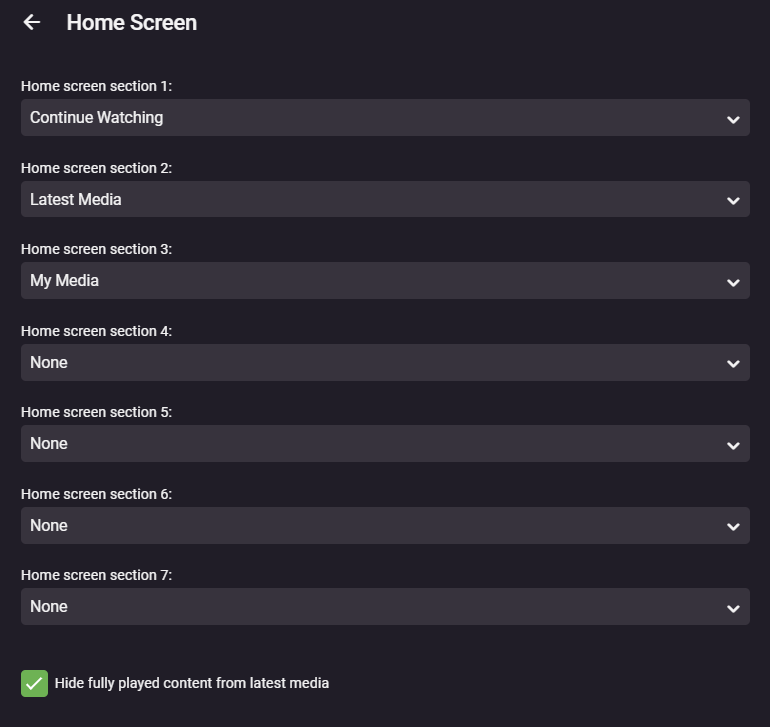
Example from the existing guide. Newer Emby versions may use a different section editor; the suggested order is the same.
Troubleshooting
If a label or option is missing, check the equivalent Home Screen controls in your current app. Available sections depend on the libraries your account can access. Refresh Home after changing settings; some preferences are specific to the client.
Contact @Captain Cruv in #emby-support on Discord. Include your device, app version, exact error, and when it happened. Never post your password.
References
Emby Home Screen and Library Order · Emby web client
Technical guidance reviewed September 2026. Store availability and interface labels can change.
iOS Apps
Set up Emby on iPhone, iPad, and Apple TV, with separate playback-access guidance.
iOS App Sign-In and unlock
Set up Emby on an iPhone, iPad, or Apple TV.
Before you start
- Have the username and password supplied after signing up on Discord. Use your username, not your email.
- Connect your device to the internet.
Install Emby
Connect and sign in
- Open Emby. If it offers Emby Connect, choose Skip or the option to connect manually. Menu wording varies by app version.
- Choose Add Server if needed. In Host or the server-address field, enter
https://blackbeardsvault.com. Keephttps://and add no extra port or path. - If the app shows a separate Port field, leave it blank, then choose Connect or Connect to Server.
- Choose Manual Login if offered. Enter the Username and Password supplied on Discord, then select Sign In.
Expected result: the home screen shows your available libraries. Play a short part of a title to check the setup.
Emby Connect is optional and uses a separately linked Connect account. Your supplied server username and password belong on the server sign-in screen.
Playback access
Apple TV has free full playback. iPhone/iPad playback can depend on server Premiere; if it is blocked, contact Cruv for Jellyfin.
Already bought an app unlock in the past? Emby honors those previous purchases. Sign in to the same Apple, Google, or Amazon store account that originally bought the unlock, using the matching app/platform. Use Restore Purchase if the app offers it. If the purchase is not recognized, contact Cruv. New app unlocks are no longer the route for access. Never purchase Emby Premiere.
Need an unlock, or seeing “Premiere Device Limit Exceeded”? Contact @Captain Cruv in #emby-support for a Jellyfin account. Do not buy an app unlock or Emby Premiere. Once Cruv has provided your account, follow Getting Started with Jellyfin.
Troubleshooting
- Cannot reach the server: copy
https://blackbeardsvault.comexactly and try the web client. - Sign-in rejected: check your username and password for extra spaces. Use the server login, not Emby Connect. Ask for account help if it still fails.
- Playback or licensing error: update the app, try another title, and report the exact message to support.
Contact @Captain Cruv in #emby-support on Discord. Include your device, app version, exact error, and when it happened. Never post your password.
References
Emby playback and Premiere requirements · Emby Connect explained
Technical guidance reviewed September 2026. Store availability and interface labels can change.
Roku App
Install Emby on Roku and connect using the Blackbeard’s Vault Host and Port settings.
Roku App Sign-In
Connect Emby on a Roku streaming player or Roku TV.
Before you start
- Have the username and password supplied after signing up on Discord. Use your username, not your email.
- Connect your device to the internet.
Install and sign in
- Search Roku’s Streaming Store for Emby and add it. The official Roku page links to the correct app.
- Open Emby and choose the manual server connection option if Emby Connect is offered.
- Enter Host:
https://blackbeardsvault.com. - Enter Port:
0, then choose Connect to Server. On this Roku form, 0 prevents an extra port being appended to the HTTPS address. - Choose Manual Login. Enter your Discord-issued Username and Password, then sign in.
Expected result: your Emby home screen appears. Roku full playback is free; no playback app unlock is required.
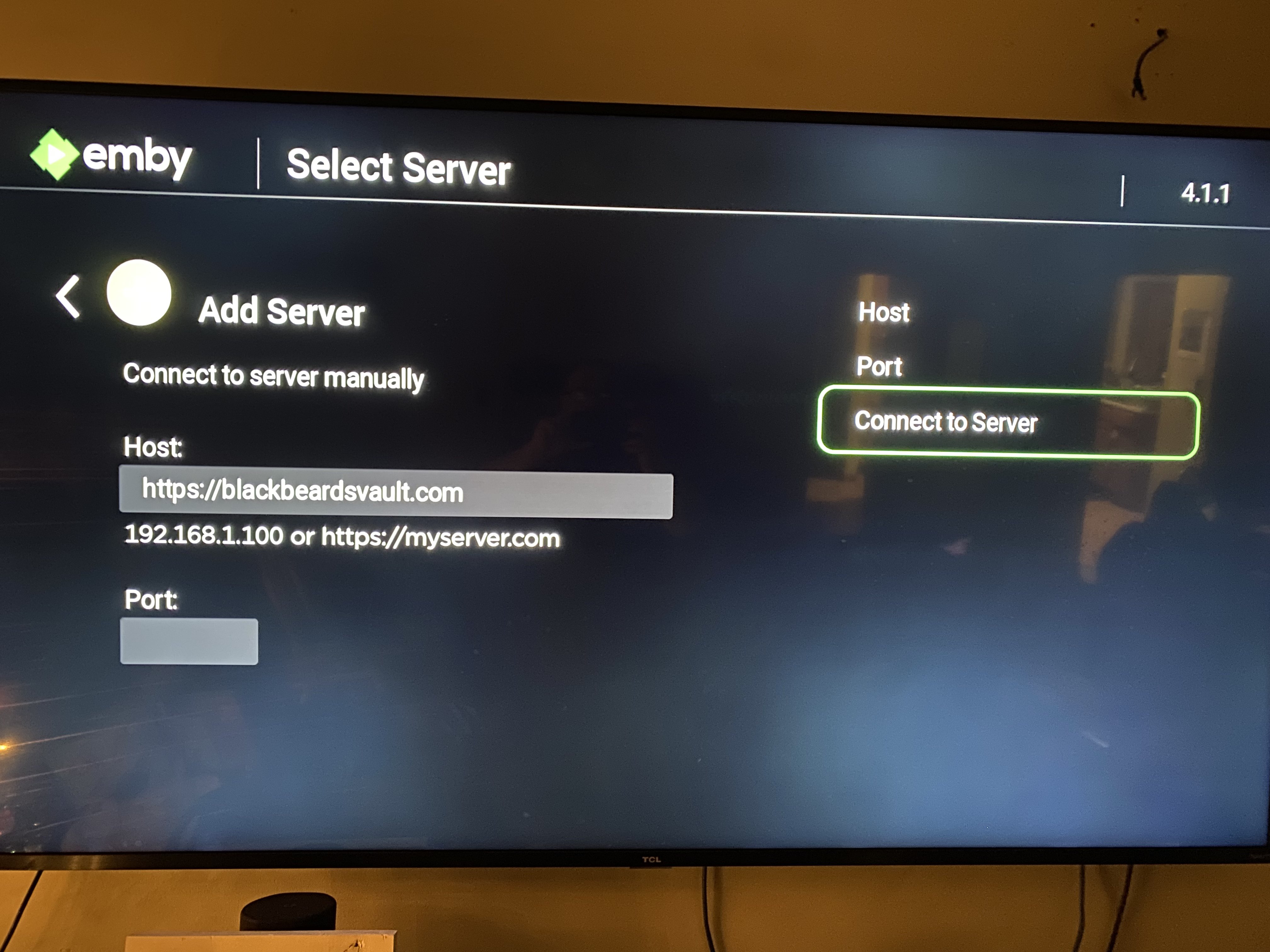
Roku connection form from the existing guide. Use the Host and Port values written above.
Already bought an app unlock in the past? Emby honors those previous purchases. Sign in to the same Apple, Google, or Amazon store account that originally bought the unlock, using the matching app/platform. Use Restore Purchase if the app offers it. If the purchase is not recognized, contact Cruv. New app unlocks are no longer the route for access. Never purchase Emby Premiere.
Need an unlock, or seeing “Premiere Device Limit Exceeded”? Contact @Captain Cruv in #emby-support for a Jellyfin account. Do not buy an app unlock or Emby Premiere. Once Cruv has provided your account, follow Getting Started with Jellyfin.
Troubleshooting
- Cannot reach the server: copy
https://blackbeardsvault.comexactly and try the web client. - Sign-in rejected: check your username and password for extra spaces. Use the server login, not Emby Connect. Ask for account help if it still fails.
- Playback or licensing error: update the app, try another title, and report the exact message to support.
Contact @Captain Cruv in #emby-support on Discord. Include your device, app version, exact error, and when it happened. Never post your password.
References
Emby playback requirements · Emby Roku developer guidance on Port 0
Technical guidance reviewed September 2026. Store availability and interface labels can change.
Amazon Fire TV
Install Emby on compatible Fire TV devices and resolve sign-in or playback-access issues.
Amazon Fire TV sign in and app unlock
Set up Emby on a compatible Amazon Fire TV or Fire TV Stick.
Before you start
- Have the username and password supplied after signing up on Discord. Use your username, not your email.
- Connect your device to the internet.
Install Emby
Connect and sign in
- Open Emby. If it offers Emby Connect, choose Skip or the option to connect manually. Menu wording varies by app version.
- Choose Add Server if needed. In Host or the server-address field, enter
https://blackbeardsvault.com. Keephttps://and add no extra port or path. - If the app shows a separate Port field, leave it blank, then choose Connect or Connect to Server.
- Choose Manual Login if offered. Enter the Username and Password supplied on Discord, then select Sign In.
Expected result: the home screen shows your available libraries. Play a short part of a title to check the setup.
Emby Connect is optional and uses a separately linked Connect account. Your supplied server username and password belong on the server sign-in screen.
Playback access
TV playback rules differ by platform. LG, Samsung, Roku, and Apple TV have free full playback in Emby’s current feature matrix. Android TV / Google TV and Fire TV have a server-wide free-device allowance; a license-limit message is not proof that a trial expired.
Already bought an app unlock in the past? Emby honors those previous purchases. Sign in to the same Apple, Google, or Amazon store account that originally bought the unlock, using the matching app/platform. Use Restore Purchase if the app offers it. If the purchase is not recognized, contact Cruv. New app unlocks are no longer the route for access. Never purchase Emby Premiere.
Need an unlock, or seeing “Premiere Device Limit Exceeded”? Contact @Captain Cruv in #emby-support for a Jellyfin account. Do not buy an app unlock or Emby Premiere. Once Cruv has provided your account, follow Getting Started with Jellyfin.
Troubleshooting
- Cannot reach the server: copy
https://blackbeardsvault.comexactly and try the web client. - Sign-in rejected: check your username and password for extra spaces. Use the server login, not Emby Connect. Ask for account help if it still fails.
- Playback or licensing error: update the app, try another title, and report the exact message to support.
Contact @Captain Cruv in #emby-support on Discord. Include your device, app version, exact error, and when it happened. Never post your password.
References
Emby playback and Premiere requirements · Emby Connect explained
Technical guidance reviewed September 2026. Store availability and interface labels can change.
Android
Set up Emby on Android phones, tablets, Android TV, and Google TV.
Android app sign in and unlock
Set up Emby on an Android phone, tablet, Android TV, or Google TV device.
Before you start
- Have the username and password supplied after signing up on Discord. Use your username, not your email.
- Connect your device to the internet.
Install Emby
Connect and sign in
- Open Emby. If it offers Emby Connect, choose Skip or the option to connect manually. Menu wording varies by app version.
- Choose Add Server if needed. In Host or the server-address field, enter
https://blackbeardsvault.com. Keephttps://and add no extra port or path. - If the app shows a separate Port field, leave it blank, then choose Connect or Connect to Server.
- Choose Manual Login if offered. Enter the Username and Password supplied on Discord, then select Sign In.
Expected result: the home screen shows your available libraries. Play a short part of a title to check the setup.
Emby Connect is optional and uses a separately linked Connect account. Your supplied server username and password belong on the server sign-in screen.
Playback access
Playback access can depend on your app and the server’s Premiere device allowance. If the app blocks playback or asks for payment, use the Jellyfin route below.
TV playback rules differ by platform. LG, Samsung, Roku, and Apple TV have free full playback in Emby’s current feature matrix. Android TV / Google TV and Fire TV have a server-wide free-device allowance; a license-limit message is not proof that a trial expired.
Already bought an app unlock in the past? Emby honors those previous purchases. Sign in to the same Apple, Google, or Amazon store account that originally bought the unlock, using the matching app/platform. Use Restore Purchase if the app offers it. If the purchase is not recognized, contact Cruv. New app unlocks are no longer the route for access. Never purchase Emby Premiere.
Need an unlock, or seeing “Premiere Device Limit Exceeded”? Contact @Captain Cruv in #emby-support for a Jellyfin account. Do not buy an app unlock or Emby Premiere. Once Cruv has provided your account, follow Getting Started with Jellyfin.
Troubleshooting
- Cannot reach the server: copy
https://blackbeardsvault.comexactly and try the web client. - Sign-in rejected: check your username and password for extra spaces. Use the server login, not Emby Connect. Ask for account help if it still fails.
- Playback or licensing error: update the app, try another title, and report the exact message to support.
Contact @Captain Cruv in #emby-support on Discord. Include your device, app version, exact error, and when it happened. Never post your password.
References
Emby playback and Premiere requirements · Emby Connect explained
Technical guidance reviewed September 2026. Store availability and interface labels can change.
Smart TV Apps
Set up Emby on LG webOS, Samsung Tizen, Android TV, and Google TV. Includes sign-in steps and help with playback access.
Smart TV App sign in and app unlock
Connect an LG, Samsung, Android TV, or Google TV television to Blackbeard’s Vault.
Before you start
- Have the username and password supplied after signing up on Discord. Use your username, not your email.
- Connect your device to the internet.
Install Emby
| TV system | Install the app |
|---|---|
| LG webOS | Emby for LG through the TV’s app store. |
| Samsung Tizen | Emby for Samsung through Samsung Apps where available. |
| Android TV / Google TV | Emby for Android TV through Google Play. |
Availability depends on TV model and region. For a Roku TV, follow Roku App Sign-In; for Fire TV, use the Fire TV guide.
Connect and sign in
- Open Emby. If it offers Emby Connect, choose Skip or the option to connect manually. Menu wording varies by app version.
- Choose Add Server if needed. In Host or the server-address field, enter
https://blackbeardsvault.com. Keephttps://and add no extra port or path. - If the app shows a separate Port field, leave it blank, then choose Connect or Connect to Server.
- Choose Manual Login if offered. Enter the Username and Password supplied on Discord, then select Sign In.
Expected result: the home screen shows your available libraries. Play a short part of a title to check the setup.
Emby Connect is optional and uses a separately linked Connect account. Your supplied server username and password belong on the server sign-in screen.
Playback access
TV playback rules differ by platform. LG, Samsung, Roku, and Apple TV have free full playback in Emby’s current feature matrix. Android TV / Google TV and Fire TV have a server-wide free-device allowance; a license-limit message is not proof that a trial expired.
Already bought an app unlock in the past? Emby honors those previous purchases. Sign in to the same Apple, Google, or Amazon store account that originally bought the unlock, using the matching app/platform. Use Restore Purchase if the app offers it. If the purchase is not recognized, contact Cruv. New app unlocks are no longer the route for access. Never purchase Emby Premiere.
Need an unlock, or seeing “Premiere Device Limit Exceeded”? Contact @Captain Cruv in #emby-support for a Jellyfin account. Do not buy an app unlock or Emby Premiere. Once Cruv has provided your account, follow Getting Started with Jellyfin.
Troubleshooting
- Cannot reach the server: copy
https://blackbeardsvault.comexactly and try the web client. - Sign-in rejected: check your username and password for extra spaces. Use the server login, not Emby Connect. Ask for account help if it still fails.
- Playback or licensing error: update the app, try another title, and report the exact message to support.
Contact @Captain Cruv in #emby-support on Discord. Include your device, app version, exact error, and when it happened. Never post your password.
References
Emby playback and Premiere requirements · Emby Connect explained
Technical guidance reviewed September 2026. Store availability and interface labels can change.
Xbox and Playstation Apps
Check Emby support for Xbox and PlayStation, then choose an available playback option.
Watching Emby from a console
Choose a supported way to watch Emby on an Xbox or PlayStation console. Availability and playback access depend on the console.
Before you start
- Have the username and password supplied after signing up on Discord. Use your username, not your email.
- Connect your device to the internet.
Xbox One and Xbox Series X/S
- Install Emby from the Microsoft Store using Emby’s Xbox page to identify the official app.
- Open the app and connect manually to
https://blackbeardsvault.com. Use your Discord-issued server username and password. - Try a title. Native Xbox playback requires server Premiere; if access is blocked, contact Cruv for Jellyfin instead of purchasing anything.
PlayStation
PS4: Emby documents a browser client, not a native PlayStation app. Open the PS4 Internet Browser at https://tv.emby.media, connect to https://blackbeardsvault.com, and use your server credentials. Emby lists Premiere as required for this TV interface.
PS5: do not follow the PS4 browser instructions; PS5 has no dedicated web-browser app. Use a supported TV app, streaming device, phone, or computer instead.
If playback is blocked
Already bought an app unlock in the past? Emby honors those previous purchases. Sign in to the same Apple, Google, or Amazon store account that originally bought the unlock, using the matching app/platform. Use Restore Purchase if the app offers it. If the purchase is not recognized, contact Cruv. New app unlocks are no longer the route for access. Never purchase Emby Premiere.
Need an unlock, or seeing “Premiere Device Limit Exceeded”? Contact @Captain Cruv in #emby-support for a Jellyfin account. Do not buy an app unlock or Emby Premiere. Once Cruv has provided your account, follow Getting Started with Jellyfin.
A Jellyfin account also needs a compatible client. See Jellyfin apps by platform before choosing a device.
Troubleshooting
- Cannot reach the server: copy
https://blackbeardsvault.comexactly and try the web client. - Sign-in rejected: check your username and password for extra spaces. Use the server login, not Emby Connect. Ask for account help if it still fails.
- Playback or licensing error: update the app, try another title, and report the exact message to support.
Contact @Captain Cruv in #emby-support on Discord. Include your device, app version, exact error, and when it happened. Never post your password.
References
Emby for Xbox · Emby for PS4 · Sony PS5 FAQ
Technical guidance reviewed September 2026. Store availability and interface labels can change.
Change your password (Emby)
EMBY · ACCOUNT HELP
Change your password using a web browser on your phone or computer, even if you normally watch in a TV or mobile app.
1. Open Emby
Keep the s in https://. Copy the whole address exactly.
Already signed in? Continue to step 2. Otherwise, sign in with your Emby username and current password.
Your username is case-sensitive. Match the capital and lowercase letters exactly as Cruv sent them. Use your server username, not your email address.
2. Open your profile
Select your user/avatar icon in the top-right corner (labelled Settings), then choose App Settings.
Under your username’s Preferences, choose Profile. Find the Password section.
3. Save your new password
Enter the password you want in New password. Type it again in New password confirm. If your version also asks for Current password, enter the password you use now.
Choose a strong, unique password and select Save Password. Wait for confirmation that it saved.
Your username stays the same. If an app asks you to sign in again, use your new Emby server password.
Forgot your password or stuck?
Contact @Captain Cruv on Discord if you cannot sign in, the password controls are missing, or the change will not save. Never send or post your current or new password.
Profile missing? Emby can hide it when your account is not allowed to edit its password. Cruv can help.
Which password does this change?
This changes your account password on Blackbeard’s Vault Emby. It does not change your Jellyfin password, app-store password, or Emby Connect password.
The separate Profile PIN is an optional four-digit code for shared devices. Use the Password section above to change your server password.
If you use Emby Connect and have forgotten that separate password, use Emby Connect password recovery.
Back to Getting Started with Emby
Verified instructions and sources
The menu path and field names were checked in Blackbeard’s Vault Emby Web 4.10.1.0 and against Emby’s official documentation. Older apps may label this area Password; use the browser route above for these steps.
Emby Profile · Passwords and PINs · Profile permissions
Checked 20 October 2026.